
Shape every screen around the way you work
Add the fields your business needs, rename and hide the ones you don’t, and arrange every grid the way you read it — no developer, no extra cost, in every plan.
What can you customise in Avirat?
Avirat lets each company add its own fields — text, number, date, dropdown or tick box — to 14 entry screens, rename, hide and reorder the built-in fields and columns, and let a number field add to or subtract from the final amount. The layout is saved for the whole company. In every stock and report grid you can also resize and reorder columns, choose which ones are shown, filter under each heading, group, total and export to Excel, and save the layout as a named view that follows you to any computer.
Have a go — it works like the real thing
Drag a column heading, pull its edge wider, filter it, group the stones. Then switch to the entry screen and add a field of your own.
| Refno | Shape | Carat | Colour | Clarity | Lab | Price $ |
|---|---|---|---|---|---|---|
| AV-1001 | Round | 1.01 | F | VS1 | GIA | 6,120 |
| AV-1002 | Oval | 0.90 | G | VVS2 | IGI | 3,980 |
| AV-1003 | Round | 2.03 | H | SI1 | GIA | 14,300 |
| AV-1004 | Pear | 1.20 | E | VS2 | GIA | 8,150 |
| AV-1005 | Emerald | 1.51 | D | IF | GIA | 21,400 |
| AV-1006 | Oval | 0.72 | F | VS1 | IGI | 2,610 |
| AV-1007 | Round | 0.50 | G | VS2 | IGI | 1,340 |
| AV-1008 | Cushion | 1.05 | H | VVS1 | GIA | 5,270 |
| 8 stones | 8.92 | 63,170 |
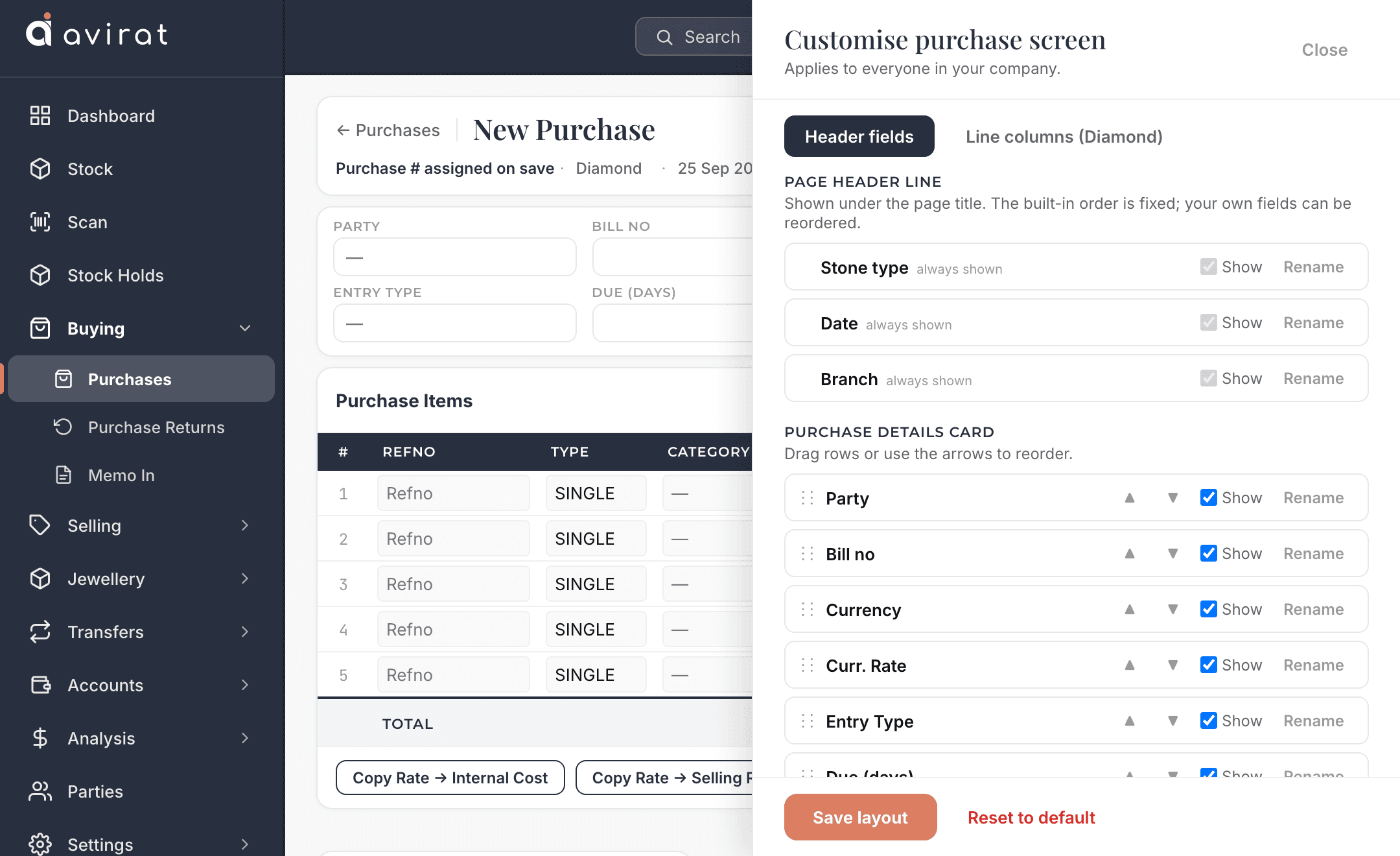
Your fields, in your order, in your words
Open Customise on any of these screens and change it for everyone in your company at once:
- Purchase
- Sale
- Sale return
- Purchase return
- Memo out
- Memo in
- Branch transfer
- Packet transfer
- Payment
- Expense
- Repair
- Customer order
- Issue to maker
- Receive from maker
Add your own fields
Text, number, date, dropdown or tick box — a “Box no.”, a “Grading comment”, a “Commission %”. Make one required, and show it only for diamonds, gemstones or jewellery.
Put them where you want
In the Details card, in the line under the title, in the Summary panel, or as a column on every line of stones.
Let a field change the total
A number in the Summary panel can add to or subtract from the final amount — courier, insurance, a discount you give.
Rename, hide and reorder
Drag fields and columns into your order, rename any of them to your own words, and hide what you never use.
Nothing important can go missing
The fields a document can’t exist without stay locked, and archiving a field hides it without losing what was typed in it.
Set once, for everyone
The layout is saved for your whole company, and only the people you allow can change it.
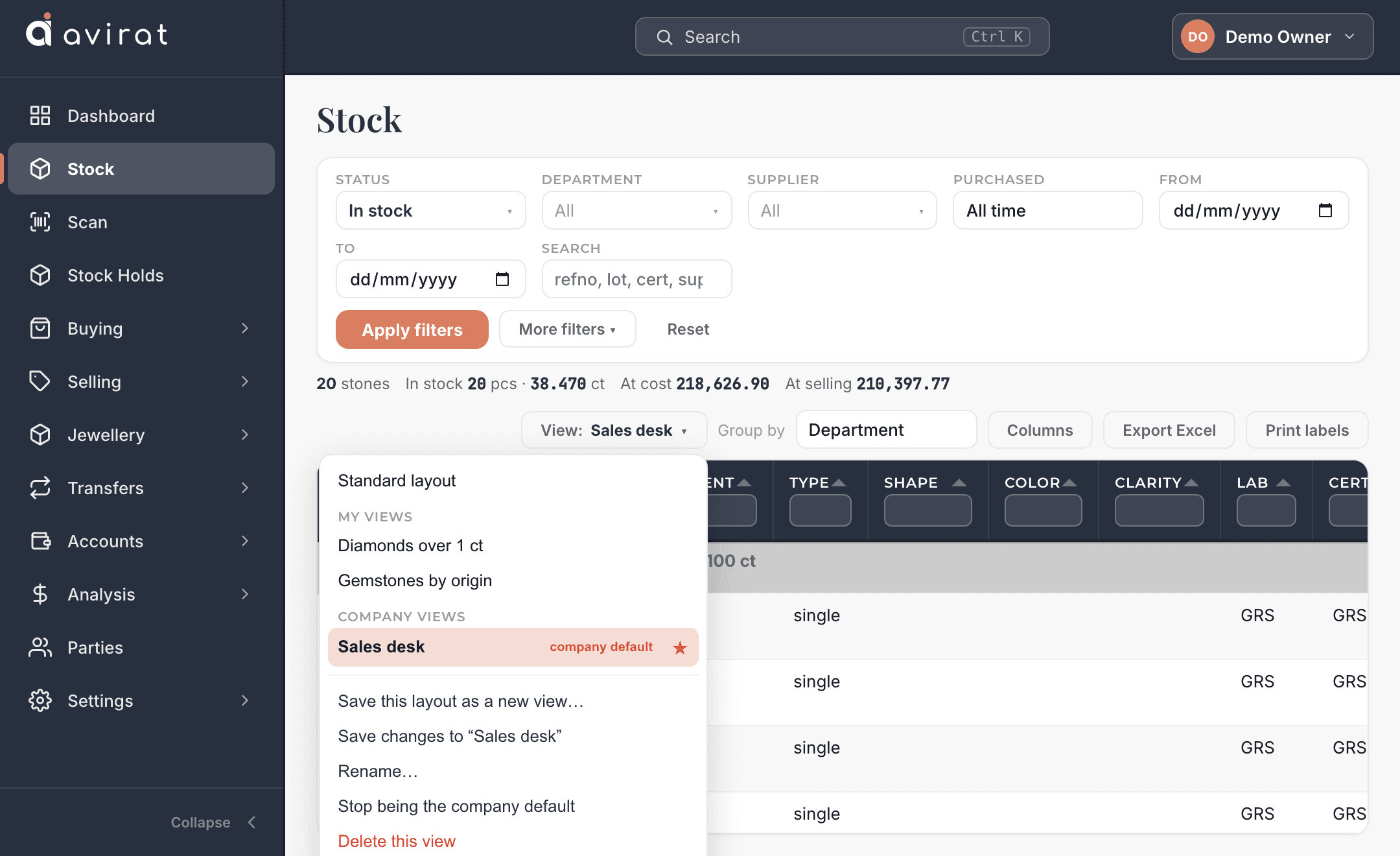
Read your stock the way you think about it
Every stock list and report works the same way, so once you know one you know them all — and the layout you like can be kept as a named view.
Resize and reorder
Drag a column edge to make it wider, or pick a column up by its heading and drop it where you want it.
Choose your columns
Tick the columns you want to see from the full list; untick the rest.
Save your views
Keep a layout — filters, columns, order, widths, grouping and sorting — as a named view that follows you to any computer. Share one with the company, and pick the view each screen opens with.
Filter every column
Type under any heading, or use “at least” on carats and amounts — on top of the filter bar.
Group and total
Group by department, status, shape, supplier or branch, with pieces, carats and value totalled.
Select, print, export
Tick rows to print their labels, or export exactly what you see to Excel.
What goes out looks like you, too
Label layouts
Arrange what goes on your barcode and QR labels by drag and drop, for your own printer.
Invoice looks
Four invoice designs you can edit — your logo, your wording, your terms.
Data feed fields
Choose, rename and order the fields each outside platform receives.
Where it is kept: custom fields and screen layouts are saved on the server for your whole company, and only people with the “Customise screens” permission can change them. Saved views — on Stock, every voucher list and every report — are kept on the server too — your own follow you to any computer, and company views are shared by those same people.
About customising Avirat
Can I add my own fields in Avirat?
Can I hide or rename the fields I don’t use?
Can I change the columns in the stock list and reports?
Can I save my own views?
Who can change the layout?
Make it yours in the free trial
Every customisation is in every plan — try it on your own stock, 14 days free.