
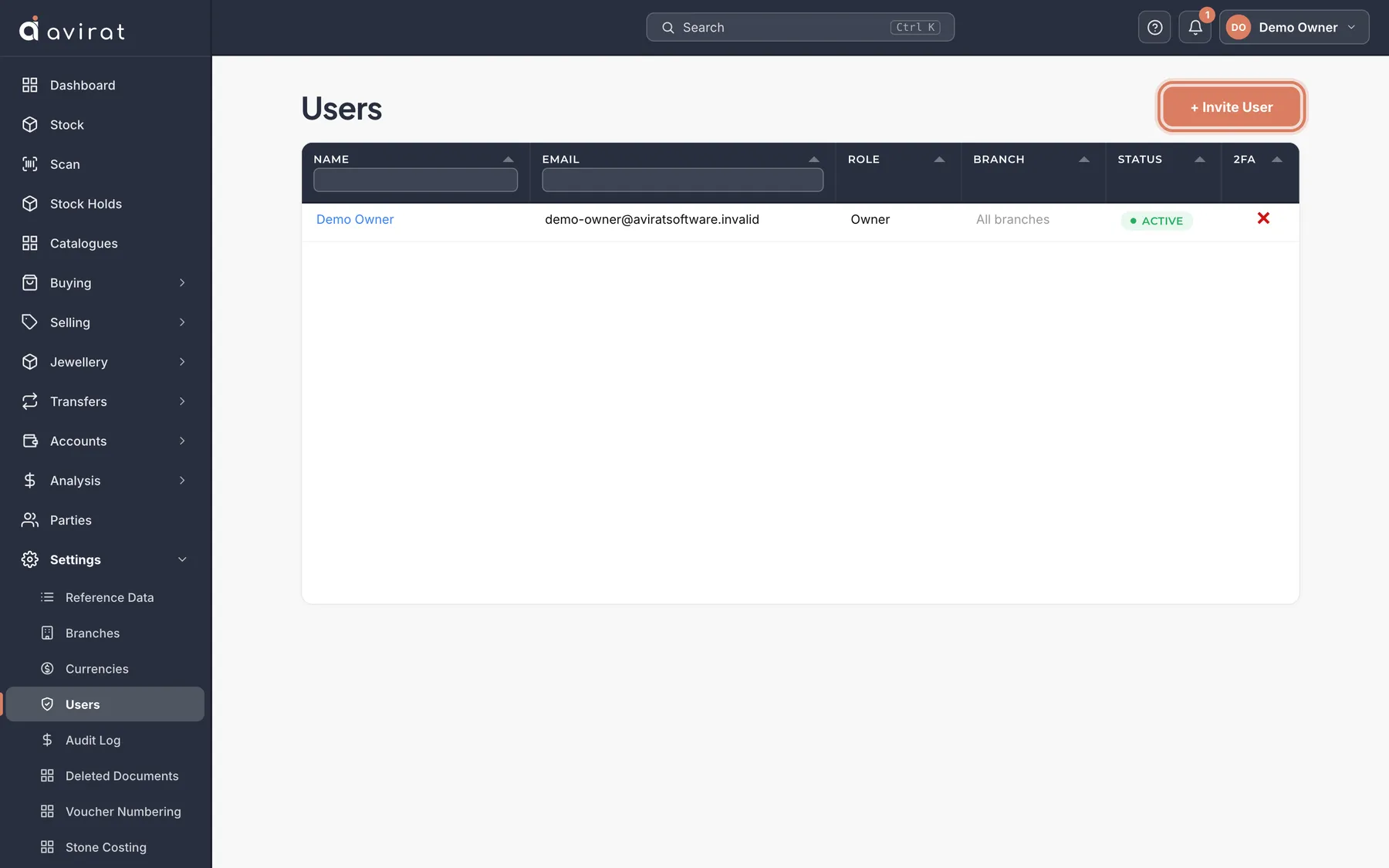
How to
- Settings → Users → Invite User. Enter their name and email, choose a Role and their Branch.
- They get an email with a link, set their own password, and sign in with their email and that password.
- Until then the invitation waits under Invitations — Resend sends a new link, Cancel stops it working.
Good to know
- Nobody else ever knows a user’s password. To help someone who forgot it, open their page and press Send password link.
- A user without a permission doesn’t see that screen at all; whether someone sees cost or selling prices is part of their role too.
- A waiting invitation holds a place in your plan.
- Every change anyone makes is in Settings → Audit Log.
Related
Still stuck? WhatsApp or call us on +91 97262 88072, or use Help & support inside Avirat — we’ll see the screen you’re on.