
How to
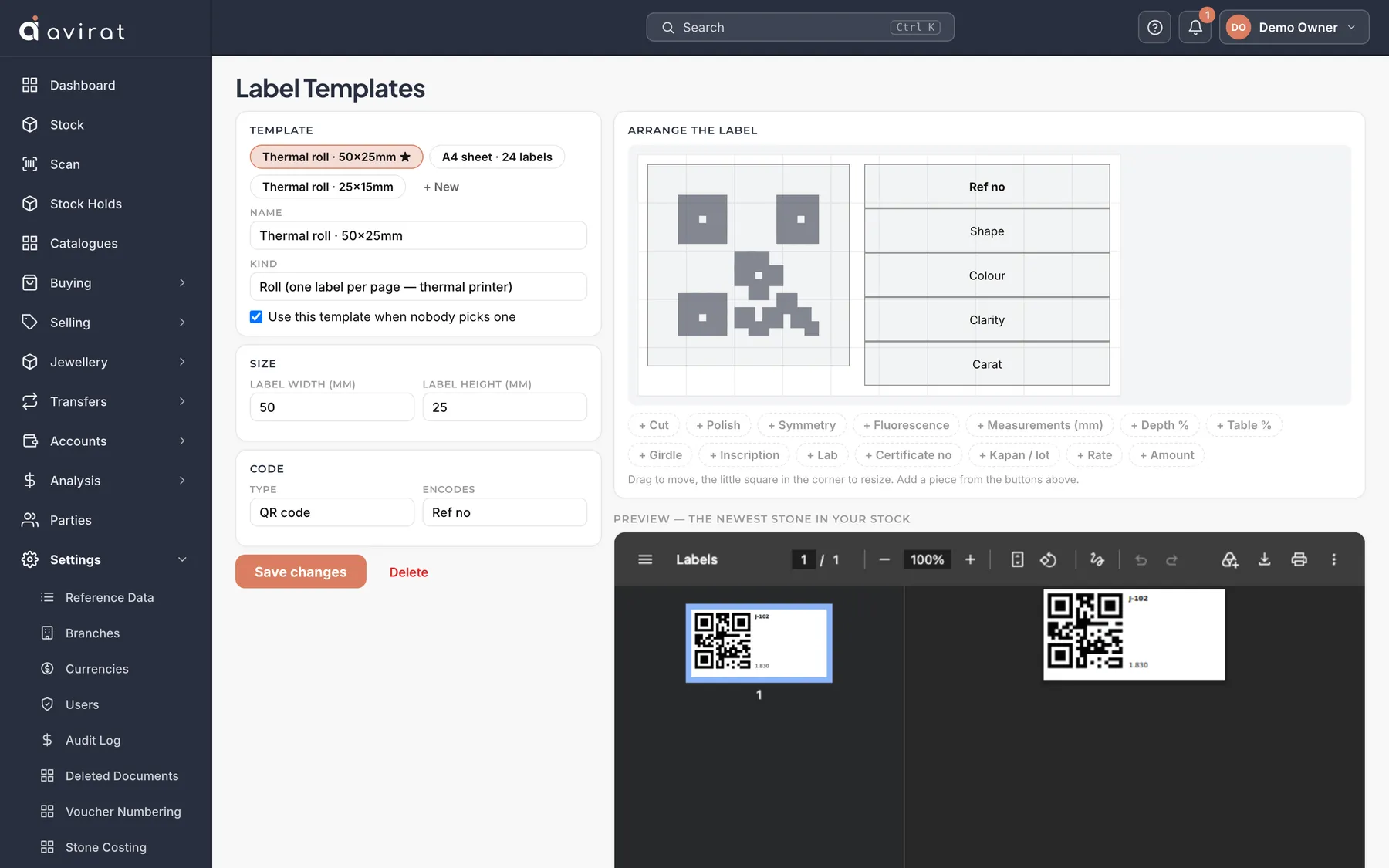
- Settings → Label Templates → + New. Set the label size to match your labels, choose what prints on it and the code type (barcode or QR). The preview uses the newest stone in your stock.
- On Stock, tick the stones and press Print labels.
- To find a stone later, open Scan and point a barcode or QR scanner at its label — it types the code and presses Enter. You can also type a refno or certificate number.
Good to know
- A roll label (one per row) and a sheet (several per page) are both supported — pick the size that matches.
- The phone app scans labels with the camera too.
Related
- Counting stock against the books
- Finding, filtering and exporting your stock
- The Avirat phone app (Android and iPhone)
Still stuck? WhatsApp or call us on +91 97262 88072, or use Help & support inside Avirat — we’ll see the screen you’re on.