
How to
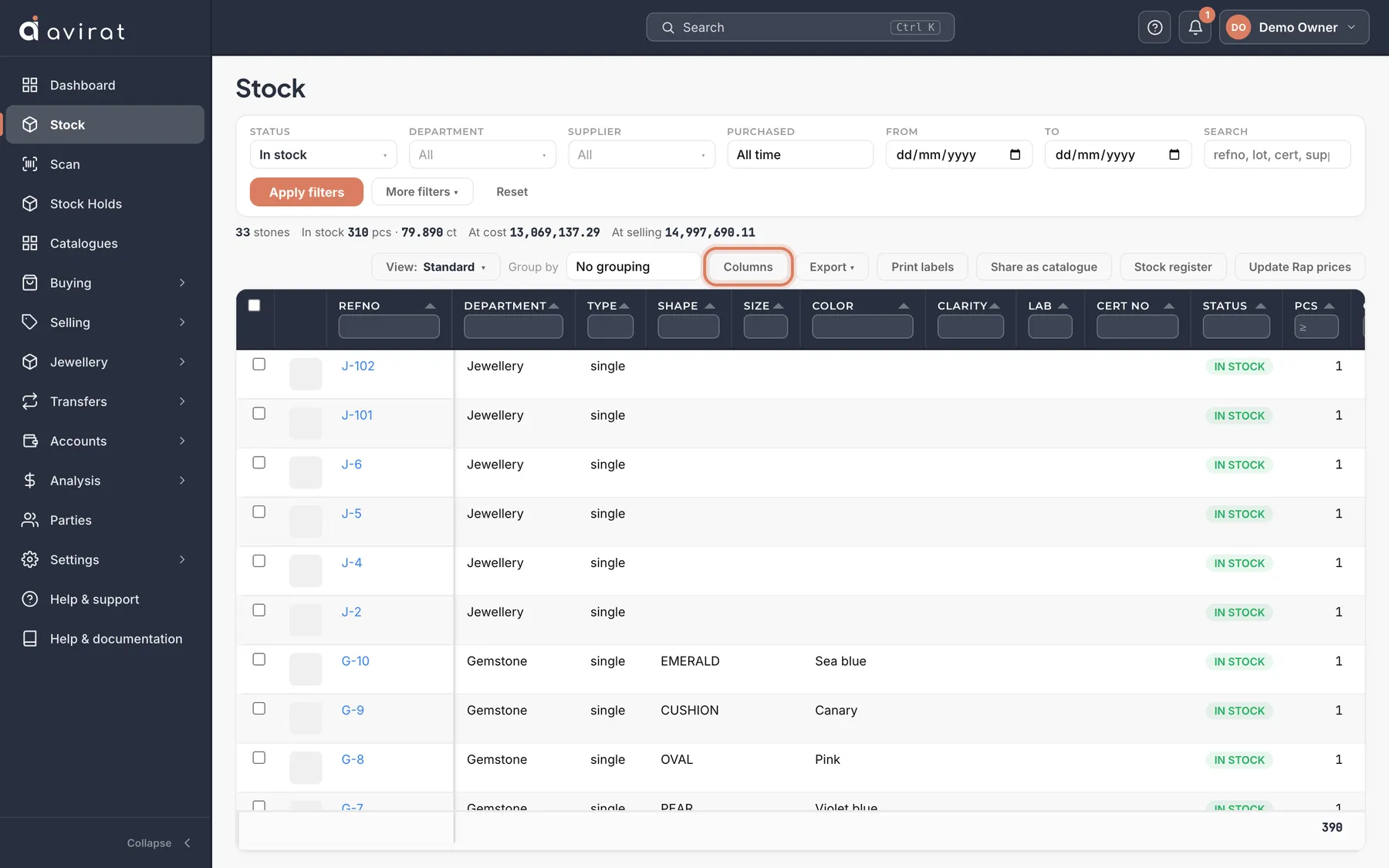
- Open Stock. Use the filters at the top — status, department, supplier, dates — and press Apply filters. Search finds a refno, lot, certificate number or supplier.
- Click a refno to open the stone: its details, photos, videos and certificates, and Trace — everything that ever happened to it.
- Columns chooses what you see; drag a column heading to move it. Group by adds subtotals per department, shape, supplier and more.
- Keep a layout you like with View → Save this layout as a new view.
- Export ▾ downloads everything the filters show — Excel or PDF, with or without prices. A PDF can carry a small photo per stone, to send a buyer.
Good to know
- Status In stock hides sold and returned stones; choose Any status to see everything.
- Rates (cost and selling) are shown in each stone’s own currency — the one it was bought in — with a Currency column when your stones are in more than one. Stock at Cost and Stock at Selling, and the totals, are in your main currency.
- Update Rap prices sets the Rap price of diamonds from your Rap price list; it never changes cost or selling price.
- The global search at the top (Ctrl K) finds a stone, document or party from any screen.
Related
- Printing labels with barcodes and QR codes
- Sharing a stone with a buyer
- Holding stones for a customer
- Bringing your stock in from Excel
Still stuck? WhatsApp or call us on +91 97262 88072, or use Help & support inside Avirat — we’ll see the screen you’re on.